
Silk Mobile
Table of Contents (Homepage)
- Overview
- Setting Up
- Getting Started
- How To
- Connecting Devices And Emulators
- Preparing Applications For Testing
- Managing Applications
- Recording Tests
- Working With Test Commands
- Adding Commands To Your Scripts
- Object Commands
- Click
- ClickCoordinate
- ClickIn
- ClickOffset
- Drag
- ElementGetProperty
- ElementGetTableRowsCount
- ElementListPick
- ElementListSelect
- ElementListVisible
- ElementScrollToTableRow
- ElementSendText
- ElementSetProperty
- ElementSwipe
- ElementSwipeWhileNotFound
- GetAllValues
- GetElementCount
- GetElementCountIn
- GetTextIn
- IsElementBlank
- IsElementFound
- IsFoundIn
- LongClick
- RunNativeAPICall
- SendWhileNotFound
- VerifyElementFound
- VerifyElementNotFound
- VerifyIn
- WaitForElement
- WaitForElementToVanish
- GetCoordinateColor
- DragDrop
- Application Commands
- Device Commands
- Web (Hybrid) Specific Commands
- Utilities Commands
- Monitoring Commands
- Configuration Commands
- ExtractLanguageFiles
- SetDefaultClickDownTime
- SetDefaultTimeOut
- SetDefaultWebView
- SetDragStartDelay
- SetInKeyDelay
- SetKeyToKeyDelay
- SetLanguage
- SetLanguagePropertiesFile
- SetShowImageInReport
- SetShowPassImageInReport
- SetShowReport
- SetSpeed
- SetThrowExceptionOnFail
- SetWebAutoScroll
- StartStepsGroup
- StopStepsGroup
- TextFilter
- Miscellaneous Commands
- Controlling Element Identification Rules
- Editing Test Objects
- Executing Test Scripts
- Report Of Executed Test
- Working From Code Environment
- Continuous Integration
- Layout Verification Tests
- Use Device Vitals Monitors
- Troubleshooting
- Terminology
VB.NET
To export code to VB.NET, you need to
-
Get the test code in VB.NET language
-
Integrate Silk Mobile and VB.NET.
Following is a step-by-step description of how to do it.
Get the test code in VB.NET language
Step 1: Go to the "Code" tab and select VB.NET.

Step 2: The test in the requested code language will show up and you can copy-paste it into any testing environment using the copy to clipboard button.
Integrate to VB.NET
You need to integrate Silk Mobile into your regular testing environment using the built in clients located in the client sub folder under your installation directory
Step By Step:
Step 1: Create VB.NET Unit test empty project.
-
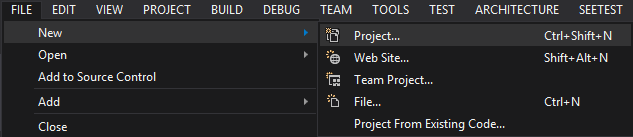
Choose new project:
-
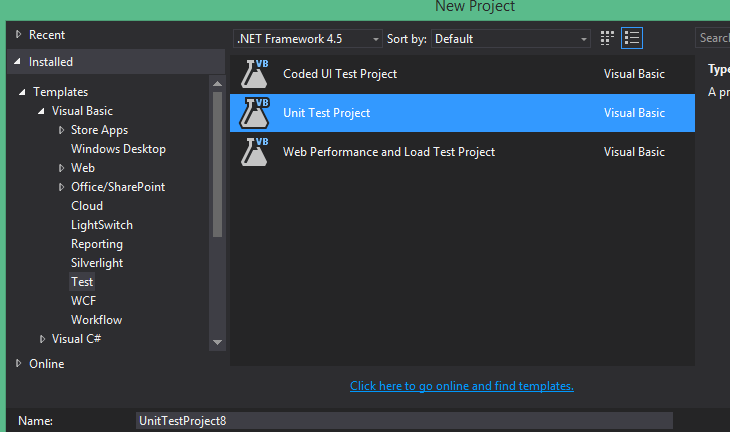
Choose Templates > Visual Basic > Test and choose Unit Test Project.
-
Click OK.
Step 2: Add references to library files.
-
In the right panel, right-click on the project.
-
choose add > Reference.

-
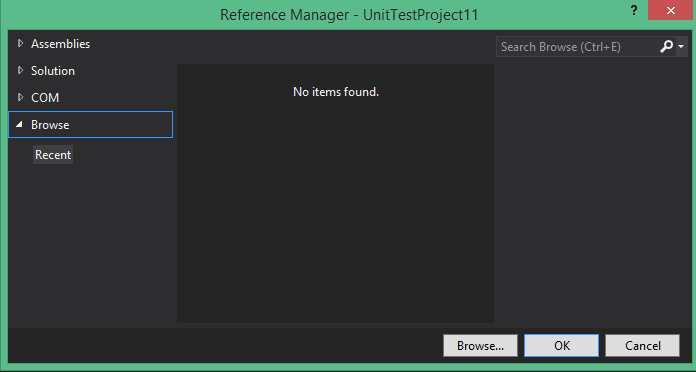
Press Browse button at the bottom.
-
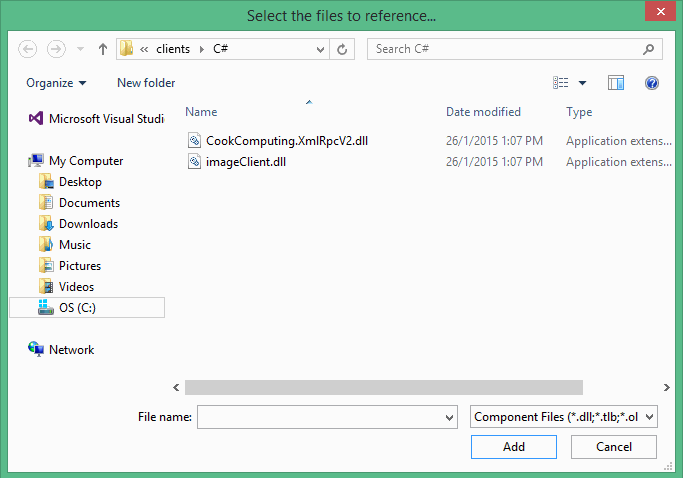
Browse to the Silk Mobile and go to /Clients/C# directory.
-
Add the following dll files:
-
CookComputing.XmlRpc.dll
-
imageClient.dll
-
-
Click OK.

-
In Visual Studio, copy the code into the VB.NET source file.
-
Right-click on the source code and press Run Tests to run the scenario.
