
Silk Mobile
Table of Contents (Homepage)
- Overview
- Setting Up
- Getting Started
- How To
- Connecting Devices And Emulators
- Preparing Applications For Testing
- Managing Applications
- Recording Tests
- Working With Test Commands
- Adding Commands To Your Scripts
- Object Commands
- Click
- ClickCoordinate
- ClickIn
- ClickOffset
- Drag
- ElementGetProperty
- ElementGetTableRowsCount
- ElementListPick
- ElementListSelect
- ElementListVisible
- ElementScrollToTableRow
- ElementSendText
- ElementSetProperty
- ElementSwipe
- ElementSwipeWhileNotFound
- GetAllValues
- GetElementCount
- GetElementCountIn
- GetTextIn
- IsElementBlank
- IsElementFound
- IsFoundIn
- LongClick
- RunNativeAPICall
- SendWhileNotFound
- VerifyElementFound
- VerifyElementNotFound
- VerifyIn
- WaitForElement
- WaitForElementToVanish
- GetCoordinateColor
- DragDrop
- Application Commands
- Device Commands
- Web (Hybrid) Specific Commands
- Utilities Commands
- Monitoring Commands
- Configuration Commands
- ExtractLanguageFiles
- SetDefaultClickDownTime
- SetDefaultTimeOut
- SetDefaultWebView
- SetDragStartDelay
- SetInKeyDelay
- SetKeyToKeyDelay
- SetLanguage
- SetLanguagePropertiesFile
- SetShowImageInReport
- SetShowPassImageInReport
- SetShowReport
- SetSpeed
- SetThrowExceptionOnFail
- SetWebAutoScroll
- StartStepsGroup
- StopStepsGroup
- TextFilter
- Miscellaneous Commands
- Controlling Element Identification Rules
- Editing Test Objects
- Executing Test Scripts
- Report Of Executed Test
- Working From Code Environment
- Continuous Integration
- Layout Verification Tests
- Use Device Vitals Monitors
- Troubleshooting
- Terminology
Element
Term relate to The Element/Object on which the command will be executed.
The input depends on the chosen Zone:
-
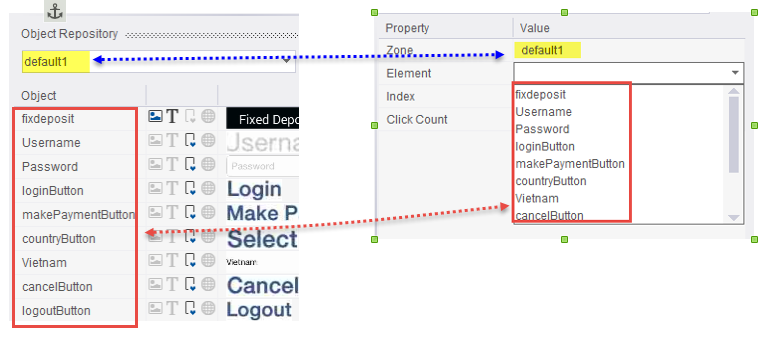
If the Zone was set to be a Grouping zone (Default or Any other Zone you have created) -The Element will be the name of the Elements that has been extracted to this zone (in the Object Repository). You can choose the required Element by selecting it from the drop-down list in the Element field, or writing its name in the Element field.
-
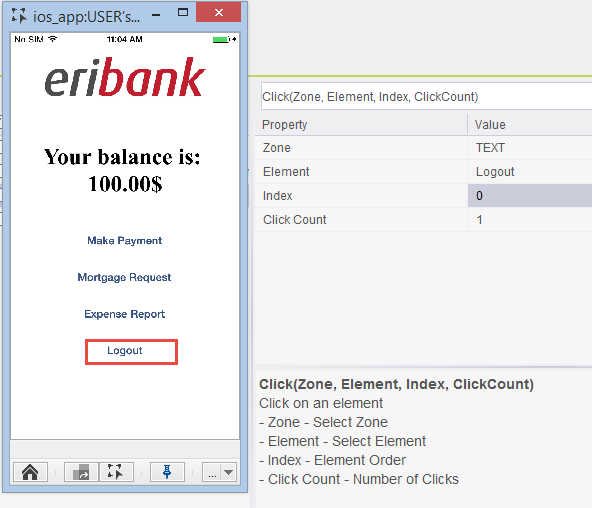
TEXT: The Element will be the visible text on the screen. The identification will be done using OCR.
Example: We will identify the first 'Logout' text on the device screen.
-
To use regular expressions in the identification you can use the following syntax (as known in Java): regexp:<Value>
-
See TextFilter, SetLanguage commands for improving text recognition.
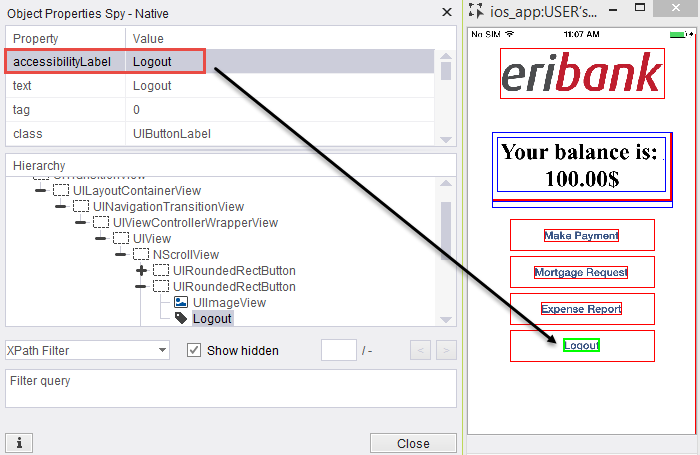
3. NATIVE or WEB: The Element will be the query using the Native/Web properties of the wanted Object.
-
For Native: It will use the UI internal model to identify it.
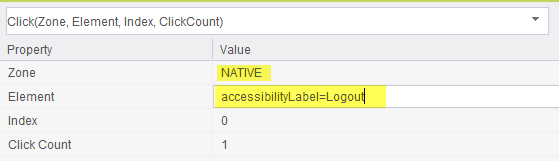
The element format in this case is as follows: <method>=<value> -
For Web: It will use WEB dom properties of the object to identify it.
Similar to NATIVE, a <method>=<value> format will be used.
-
Example: We will identify the first Object that has the value 'Logout' using its 'accessibilityLabel' proprty to click on it.
An additional option would be to use the ‘nclick:’ input before the element value. This option is only available for NATIVE and WEB options. When the "nclick" option is used, the click operation will be done using the native option as opposed to sending the click using the device OS.
Zone: WEB
Element: nclick:id=my_btn
Will generate javascript click event and not operating system event.