
Silk Mobile
Table of Contents (Homepage)
- Overview
- Setting Up
- Getting Started
- How To
- Connecting Devices And Emulators
- Preparing Applications For Testing
- Managing Applications
- Recording Tests
- Working With Test Commands
- Adding Commands To Your Scripts
- Object Commands
- Click
- ClickCoordinate
- ClickIn
- ClickOffset
- Drag
- ElementGetProperty
- ElementGetTableRowsCount
- ElementListPick
- ElementListSelect
- ElementListVisible
- ElementScrollToTableRow
- ElementSendText
- ElementSetProperty
- ElementSwipe
- ElementSwipeWhileNotFound
- GetAllValues
- GetElementCount
- GetElementCountIn
- GetTextIn
- IsElementBlank
- IsElementFound
- IsFoundIn
- LongClick
- RunNativeAPICall
- SendWhileNotFound
- VerifyElementFound
- VerifyElementNotFound
- VerifyIn
- WaitForElement
- WaitForElementToVanish
- GetCoordinateColor
- DragDrop
- Application Commands
- Device Commands
- Web (Hybrid) Specific Commands
- Utilities Commands
- Monitoring Commands
- Configuration Commands
- ExtractLanguageFiles
- SetDefaultClickDownTime
- SetDefaultTimeOut
- SetDefaultWebView
- SetDragStartDelay
- SetInKeyDelay
- SetKeyToKeyDelay
- SetLanguage
- SetLanguagePropertiesFile
- SetShowImageInReport
- SetShowPassImageInReport
- SetShowReport
- SetSpeed
- SetThrowExceptionOnFail
- SetWebAutoScroll
- StartStepsGroup
- StopStepsGroup
- TextFilter
- Miscellaneous Commands
- Controlling Element Identification Rules
- Editing Test Objects
- Executing Test Scripts
- Report Of Executed Test
- Working From Code Environment
- Continuous Integration
- Layout Verification Tests
- Use Device Vitals Monitors
- Troubleshooting
- Terminology
ElementListVisible
Note: Command will work only after application preparation .
boolean elementListVisible (ListLocator, ElementLocator, Index)
|
|
|
|



Description
Matching command to elementListSelect . Will make element on a list visible
Parameters
-
ListLocator: List locator
-
ElementLocator: Element locator
Note: This variable does not support XPath queries
-
Index: Element index
Usage
Command Usage: This is actually elementListSelect command with click parameter of false.
Scenario: In the following example we will use the EriBank application to select an element from the country list.
Step 1: Login to the EriBank application.
Step 2: Click the Make Payment button.
Step 3: Click Select button.
Step 4: See elementListSelect example on how to get the list locator Native properties and the element locator Native properties (The option you want to pick on the list).
In this example we would want to make the United Kingdom option
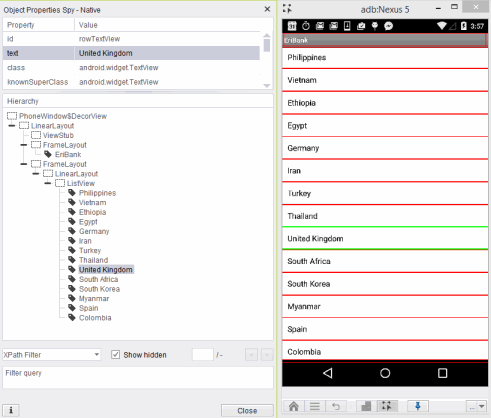
Step 5: Set the commands properties to find the element
-
List Locator: "id=countryList"
-
Element Locator: "text=United Kingdom"
-
Index: 0
This will now find 'United Kingdom' and make it visible on the screen.
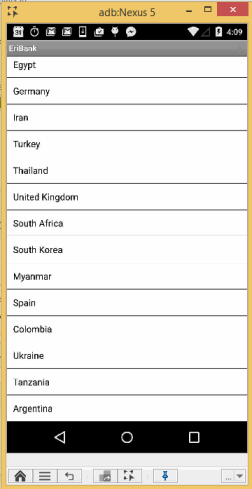
Console log:

Code Examples
client.elementListVisible("id=countryList", "text=United Kingdom", 0);client.ElementListVisible("id=countryList", "text=United Kingdom", 0);client.ElementListVisible ( "id=countryList", "text=United Kingdom", 0 )self.client.elementListVisible("id=countryList", "text=United Kingdom", 0)$client->elementListVisible("id=countryList", "text=United Kingdom", 0);