
Silk Mobile
Table of Contents (Homepage)
- Overview
- Setting Up
- Getting Started
- How To
- Connecting Devices And Emulators
- Preparing Applications For Testing
- Managing Applications
- Recording Tests
- Working With Test Commands
- Adding Commands To Your Scripts
- Object Commands
- Click
- ClickCoordinate
- ClickIn
- ClickOffset
- Drag
- ElementGetProperty
- ElementGetTableRowsCount
- ElementListPick
- ElementListSelect
- ElementListVisible
- ElementScrollToTableRow
- ElementSendText
- ElementSetProperty
- ElementSwipe
- ElementSwipeWhileNotFound
- GetAllValues
- GetElementCount
- GetElementCountIn
- GetTextIn
- IsElementBlank
- IsElementFound
- IsFoundIn
- LongClick
- RunNativeAPICall
- SendWhileNotFound
- VerifyElementFound
- VerifyElementNotFound
- VerifyIn
- WaitForElement
- WaitForElementToVanish
- GetCoordinateColor
- DragDrop
- Application Commands
- Device Commands
- Web (Hybrid) Specific Commands
- Utilities Commands
- Monitoring Commands
- Configuration Commands
- ExtractLanguageFiles
- SetDefaultClickDownTime
- SetDefaultTimeOut
- SetDefaultWebView
- SetDragStartDelay
- SetInKeyDelay
- SetKeyToKeyDelay
- SetLanguage
- SetLanguagePropertiesFile
- SetShowImageInReport
- SetShowPassImageInReport
- SetShowReport
- SetSpeed
- SetThrowExceptionOnFail
- SetWebAutoScroll
- StartStepsGroup
- StopStepsGroup
- TextFilter
- Miscellaneous Commands
- Controlling Element Identification Rules
- Editing Test Objects
- Executing Test Scripts
- Report Of Executed Test
- Working From Code Environment
- Continuous Integration
- Layout Verification Tests
- Use Device Vitals Monitors
- Troubleshooting
- Terminology
ElementGetProperty
Note: Commands work only after application preparation.
ElementGetProperty(Zone, Element, Index, Property)
|
|
|
|
|




Description
Command to get a property of an element. Can retrieve all properties of the elements that are showing on the object spy as also controllers.
Parameters
Supported properties:
All available properties from the object spy.
Additional supported properties:
-
index: For android and iOS pickers to get the element in the picker in the provided index.
-
date: Works on Android and iOS date picker, to get the date value.
-
datetime: Works on iOS date time picker, to get the date and time value
-
time: Works on Android or iOS time picker, to get the time value.
-
slide: Works on Android or iOS slider to get the slider value.
-
text: Works on Android or iOS picker to get the specific selected text in the picker.
-
on: Works on Android or iOS switch to get its value (true or false)
-
InnerHTML: Works on Android or iOS. Gets the inner HTML code.
-
enabled: Check if a button is enabled or disabled. Works on Android or iOS buttons.
-
checked: Check if a checkbox is checked or not. Works on Android or iOS buttons.
Note: For Windows Phone, using invalid property name on the command will be returned a list of the available properties for the current element in the error log.
Usage
Scenario 1: date pickers
In the following example we will get the selected date from a picker using the UICatalog Test application.
Step 1: Get the picker's Native id.
How to find the picker's Native properties?
Usually it can be found behind its components properties:
-
Click on one of the picker's components.
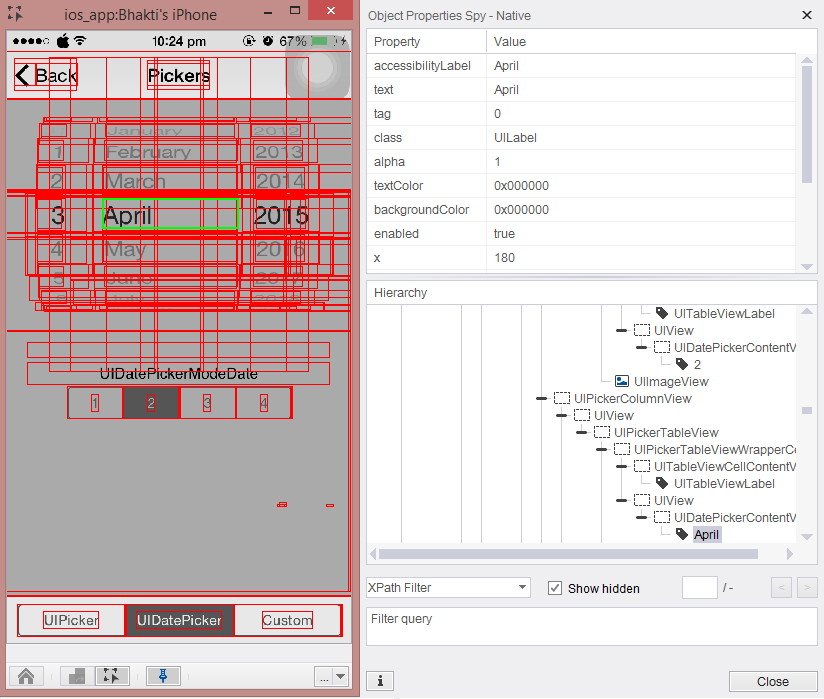
-
Right-click on the component then click on 'Ignore' - this will remove its properties from the screen, and will let you see what's behind it.
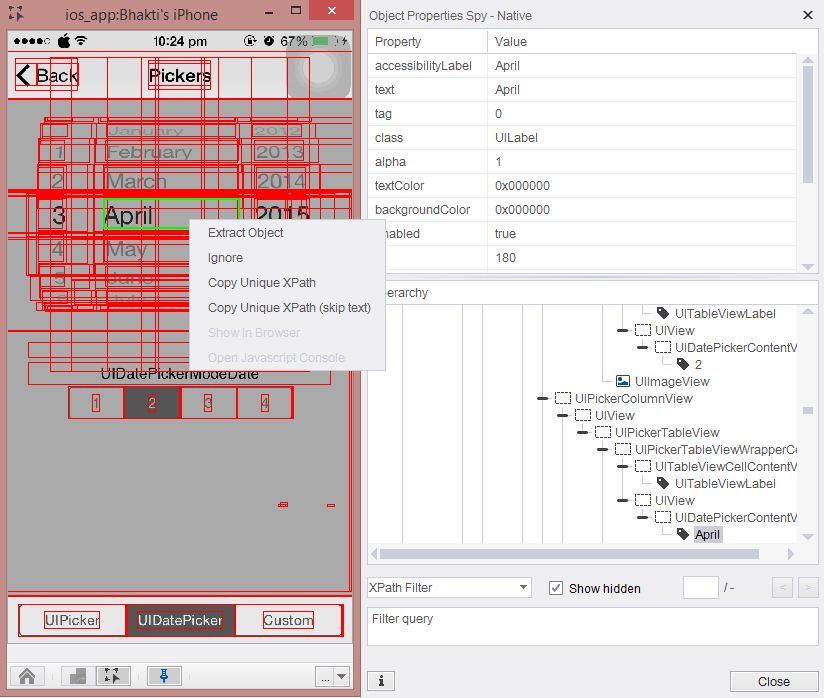
-
Click again in the same place - the picker's properties will now show up (if not, continue ignoring until you find it)
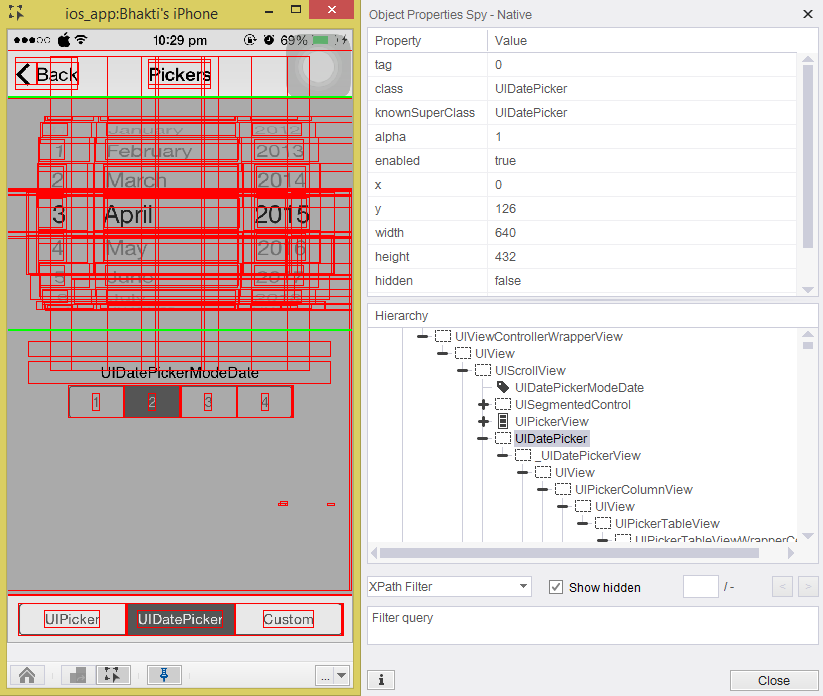
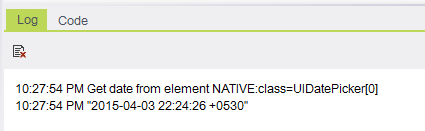
Step 2: Set the command's properties to get the selected date in the picker.
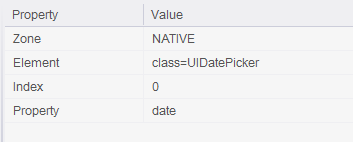
Result:
Scenario2: Sliders
In the following example we will get the selected value from a slider using the UICatalog Test application.
Step 1: Get the slider's Native id.
How to find the picker's Native properties?
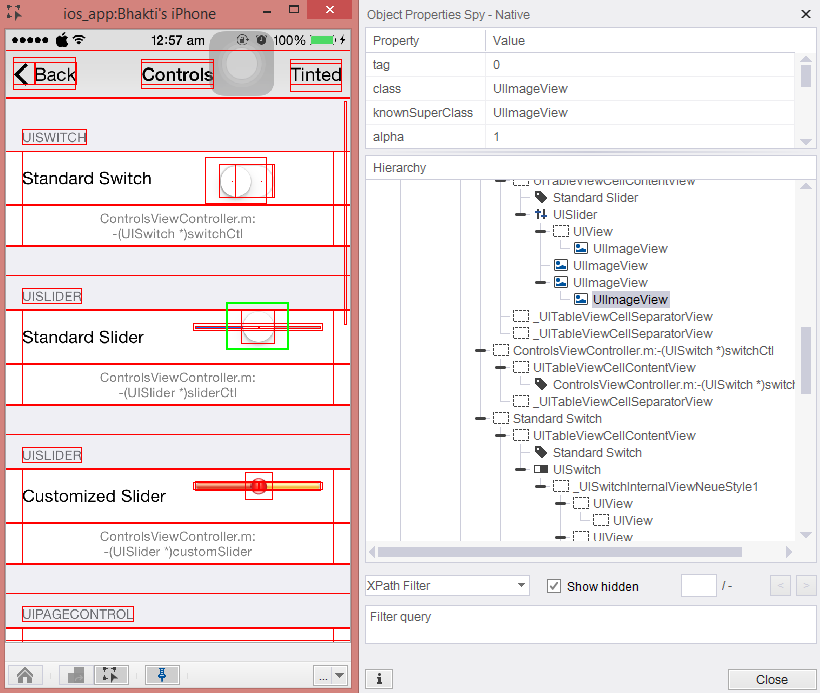
Usually it can be found behind its components properties:
-
Click on one of the picker's components.
-
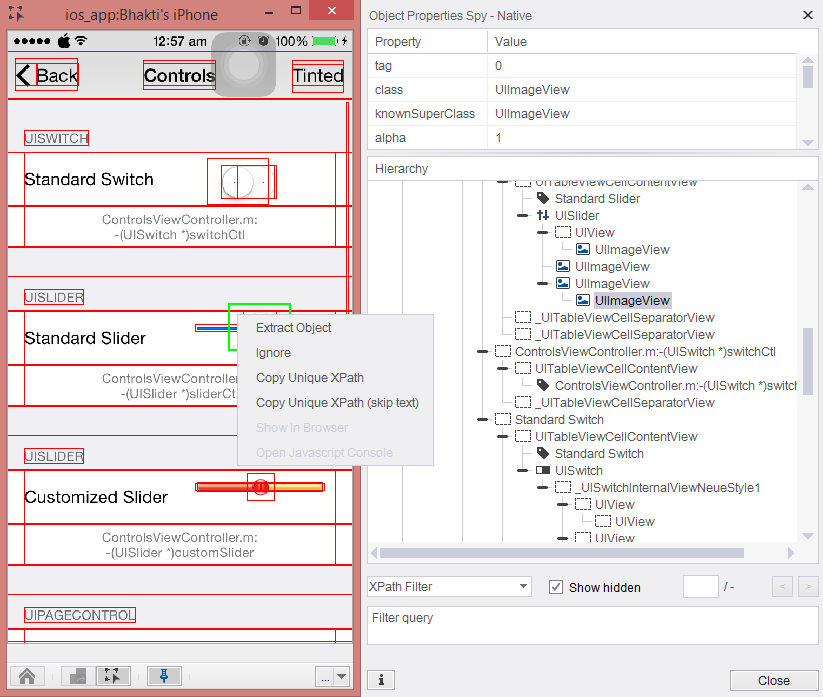
Right-click on the component then click on 'Ignore' - this will remove its properties from the screen, and will let you see what's behind it.
-
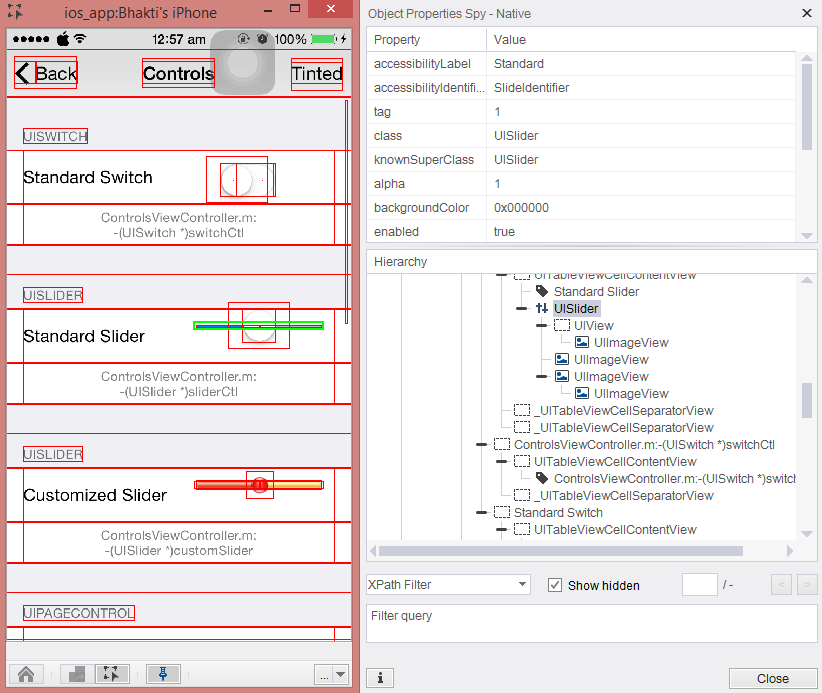
Click again in the same place - the picker's properties will now show up (if not, continue ignoring until you find it).
Step 2: Set the command's properties to get the selected value in the slider.
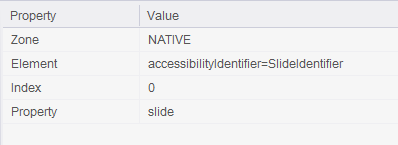
Result:
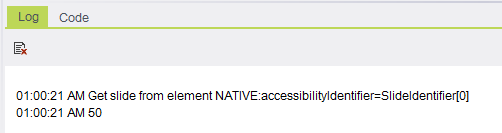
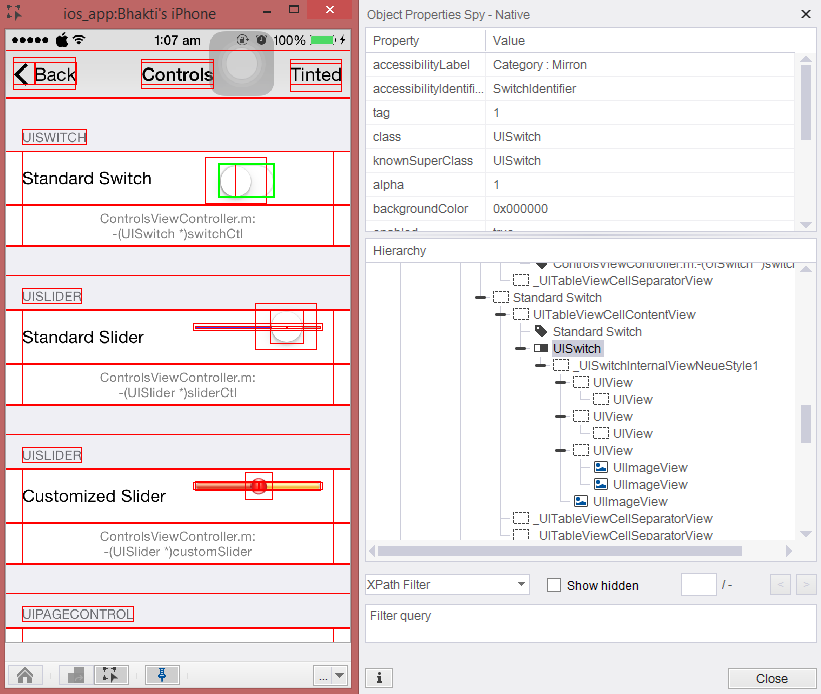
Scenario 3: Switches
In the following example we will check if a button is on or off using the UICatalog Test application.
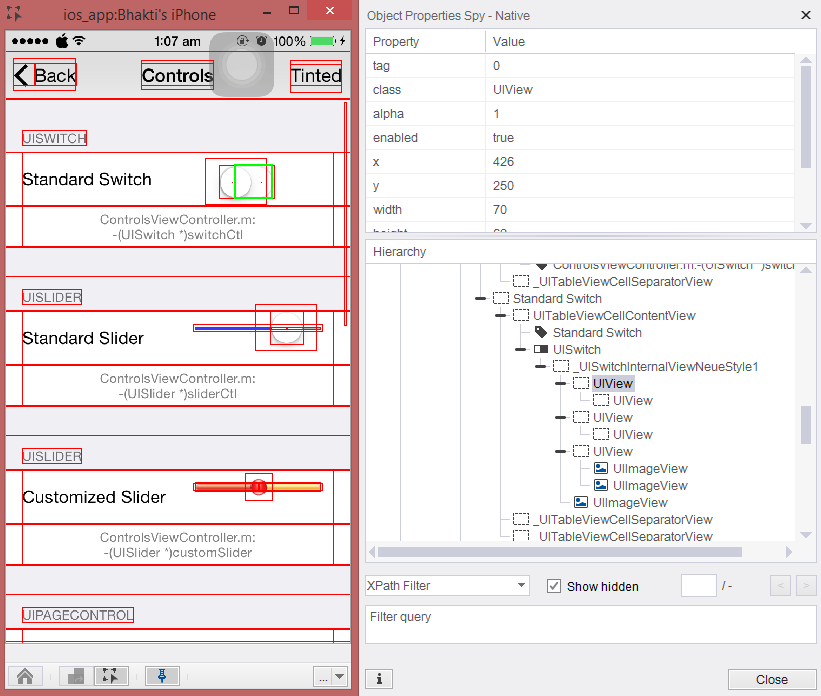
Step 1: Get the button's Native id
How to find the picker's Native properties?
Usually it can be found behind its components properties:
-
Click on one of the button's components.
-
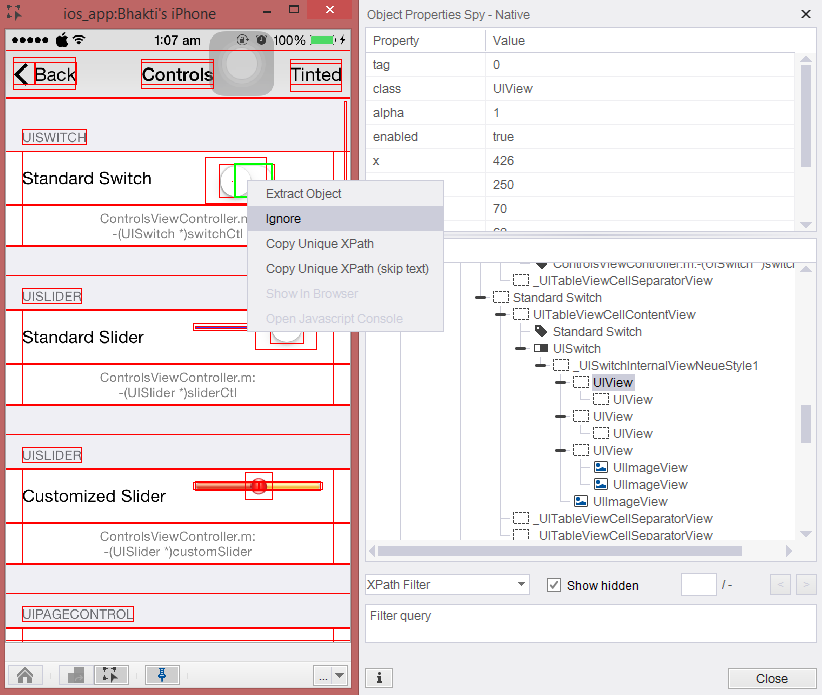
Right-click on the component then click on 'Ignore' - this will remove its properties from the screen, and will let you see what's behind it.
-
Click again in the same place - the picker's properties will now show up (if not, continue ignoring until you find it)
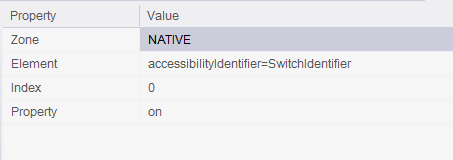
Step 2: Set the command's properties to get the selected value in the slider.
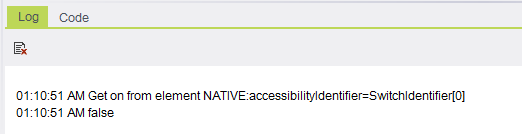
Result:
Code Examples
String str0 = client.elementGetProperty("NATIVE", "class=UIDatePicker", 0, "date");string str0 = client.ElementGetProperty("NATIVE", "class=UIDatePicker", 0, "date");str0 = client.ElementGetProperty ( "NATIVE", "class=UIDatePicker", 0, "date" )Reportvar0 = self.client.elementGetProperty("NATIVE", "class=UIDatePicker", 0, "date")my $str0 = $client->elementGetProperty("NATIVE", "class=UIDatePicker", 0, "date");