
Silk Mobile
Table of Contents (Homepage)
- Overview
- Setting Up
- Getting Started
- How To
- Connecting Devices And Emulators
- Preparing Applications For Testing
- Managing Applications
- Recording Tests
- Working With Test Commands
- Adding Commands To Your Scripts
- Object Commands
- Click
- ClickCoordinate
- ClickIn
- ClickOffset
- Drag
- ElementGetProperty
- ElementGetTableRowsCount
- ElementListPick
- ElementListSelect
- ElementListVisible
- ElementScrollToTableRow
- ElementSendText
- ElementSetProperty
- ElementSwipe
- ElementSwipeWhileNotFound
- GetAllValues
- GetElementCount
- GetElementCountIn
- GetTextIn
- IsElementBlank
- IsElementFound
- IsFoundIn
- LongClick
- RunNativeAPICall
- SendWhileNotFound
- VerifyElementFound
- VerifyElementNotFound
- VerifyIn
- WaitForElement
- WaitForElementToVanish
- GetCoordinateColor
- DragDrop
- Application Commands
- Device Commands
- Web (Hybrid) Specific Commands
- Utilities Commands
- Monitoring Commands
- Configuration Commands
- ExtractLanguageFiles
- SetDefaultClickDownTime
- SetDefaultTimeOut
- SetDefaultWebView
- SetDragStartDelay
- SetInKeyDelay
- SetKeyToKeyDelay
- SetLanguage
- SetLanguagePropertiesFile
- SetShowImageInReport
- SetShowPassImageInReport
- SetShowReport
- SetSpeed
- SetThrowExceptionOnFail
- SetWebAutoScroll
- StartStepsGroup
- StopStepsGroup
- TextFilter
- Miscellaneous Commands
- Controlling Element Identification Rules
- Editing Test Objects
- Executing Test Scripts
- Report Of Executed Test
- Working From Code Environment
- Continuous Integration
- Layout Verification Tests
- Use Device Vitals Monitors
- Troubleshooting
- Terminology
ElementSendText
ElementSendText(Zone, Element, Index, Text)
|
|
|
|
|




Description
Send text to an element
Usage
Scenario: In the following example we will fill the "Search" field with some value by using the field native ID.
-
First, lets identify the field's native ID by using the spy feature.
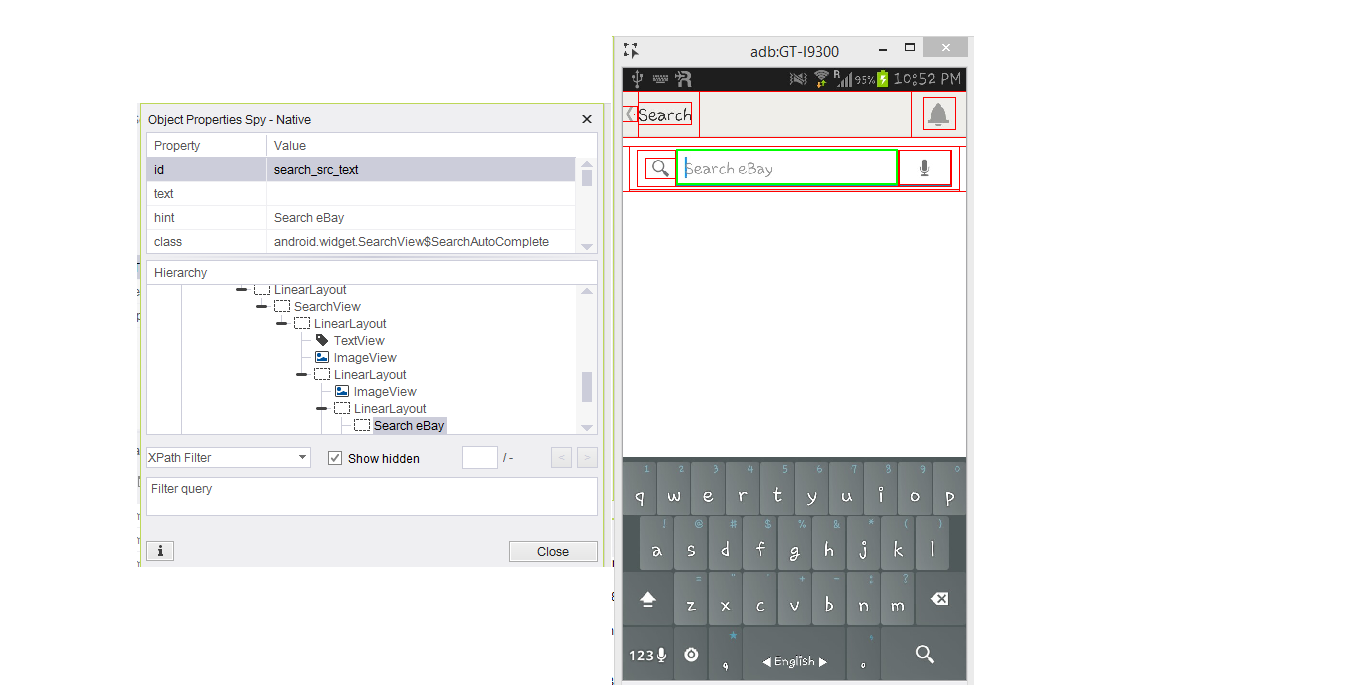
-
We will use the "ElementSendText" command, and send the value ‘Shoes’.
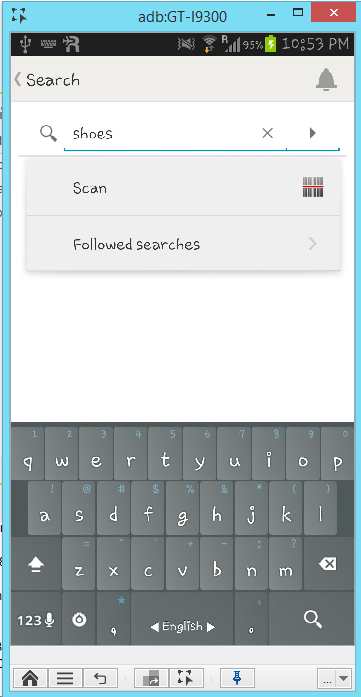
Command usage:
With the 'ElementSendText' command you can send text from your computer's keyboard to a specific text field, without clicking on it.
Parameters:
-
Zone: Select Zone – will be set to "Native"
-
Element: Select Element – will be set to "id=search_src_text"
-
Index: Element index – will be set to "0"
-
Text: Text to Send – will be set to "Shoes"
Code Examples
client.elementSendText("NATIVE", "id=search_src_text", 0, "shoes");client.ElementSendText("NATIVE", "id=search_src_text", 0, "shoes");client.ElementSendText "NATIVE", "id=search_src_text", 0, "shoes"Report self.client.elementSendText("NATIVE", "id=search_src_text", 0, "shoes")$client->elementSendText("NATIVE", "id=search_src_text", 0, "shoes");ic_element_send_text(&client, "NATIVE", "id=search_src_text", 0, "shoes");