
Silk Mobile
Table of Contents (Homepage)
- Overview
- Setting Up
- Getting Started
- How To
- Connecting Devices And Emulators
- Preparing Applications For Testing
- Managing Applications
- Recording Tests
- Working With Test Commands
- Adding Commands To Your Scripts
- Object Commands
- Click
- ClickCoordinate
- ClickIn
- ClickOffset
- Drag
- ElementGetProperty
- ElementGetTableRowsCount
- ElementListPick
- ElementListSelect
- ElementListVisible
- ElementScrollToTableRow
- ElementSendText
- ElementSetProperty
- ElementSwipe
- ElementSwipeWhileNotFound
- GetAllValues
- GetElementCount
- GetElementCountIn
- GetTextIn
- IsElementBlank
- IsElementFound
- IsFoundIn
- LongClick
- RunNativeAPICall
- SendWhileNotFound
- VerifyElementFound
- VerifyElementNotFound
- VerifyIn
- WaitForElement
- WaitForElementToVanish
- GetCoordinateColor
- DragDrop
- Application Commands
- Device Commands
- Web (Hybrid) Specific Commands
- Utilities Commands
- Monitoring Commands
- Configuration Commands
- ExtractLanguageFiles
- SetDefaultClickDownTime
- SetDefaultTimeOut
- SetDefaultWebView
- SetDragStartDelay
- SetInKeyDelay
- SetKeyToKeyDelay
- SetLanguage
- SetLanguagePropertiesFile
- SetShowImageInReport
- SetShowPassImageInReport
- SetShowReport
- SetSpeed
- SetThrowExceptionOnFail
- SetWebAutoScroll
- StartStepsGroup
- StopStepsGroup
- TextFilter
- Miscellaneous Commands
- Controlling Element Identification Rules
- Editing Test Objects
- Executing Test Scripts
- Report Of Executed Test
- Working From Code Environment
- Continuous Integration
- Layout Verification Tests
- Use Device Vitals Monitors
- Troubleshooting
- Terminology
RunNativeAPICall
RunNativeAPICall(Zone, Element, Index, Text)
Note: Command will work only after application preparation .
|
|
|
|



Description
Gives the ability to create and run scripts that are based on the Native API methods available for the class of the element.
Parameters
Usage
Scenario: In the following example, we will use the Android Native API methods in order to inspect and manipulate a video that is playing on the device.
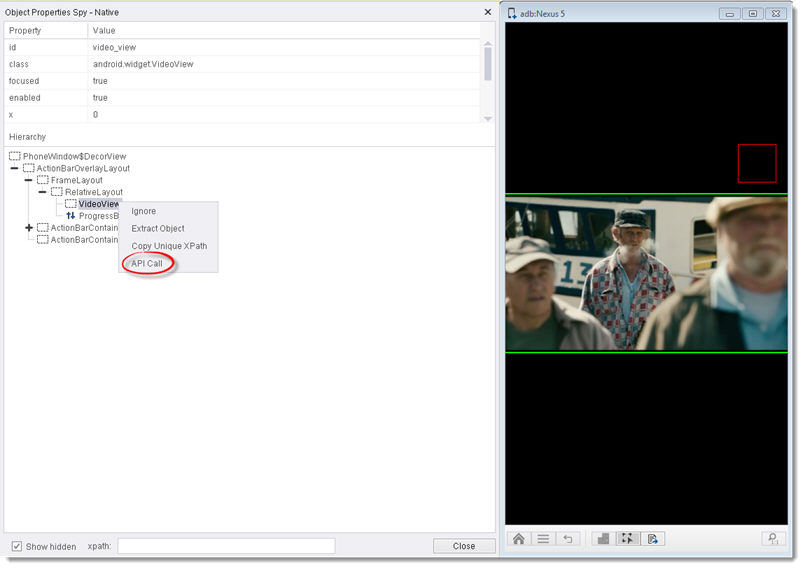
First, we will identify in the object spy the element on which we want to create the API call script. In this case, we will select the element of classandroid.widget.VideoView, since it is the one responsible for playing the video. After that, right click on the element in the object spy hierarchy tree, and click on the API Call.
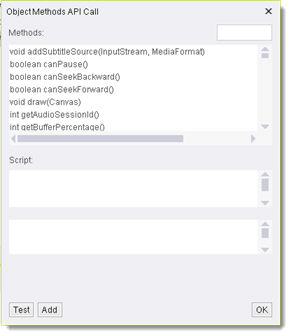
A new dialog box will open up. In the Methods list, we can now observe all the different Native API functions that are available for this specific class (android.widget.VideoView).
We can now create a script based on the available methods. The script can include one or more different methods. In this example, our script will include 3 different methods:
-
view.pause - will pause the video.
-
view.getDuration - will return the total length of the video in milliseconds.
-
view.seekTo - will move the video to a specific time position.
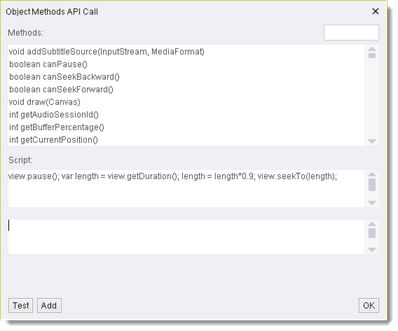
The script will pause the video, get its total duration, and then move to the time position where the video is at 90% completion. Notice that the script can also include variables that are defined and returned and actions that are not directly related to the element itself (like calculating the 90% time position).
The script can now be tested by using the Test button. The actions will be performed on the device, and if the script returns a value it will it show in the return box. After the script is tested and ready, clicking the Add button will automatically add the script as a command to the studio command tab.
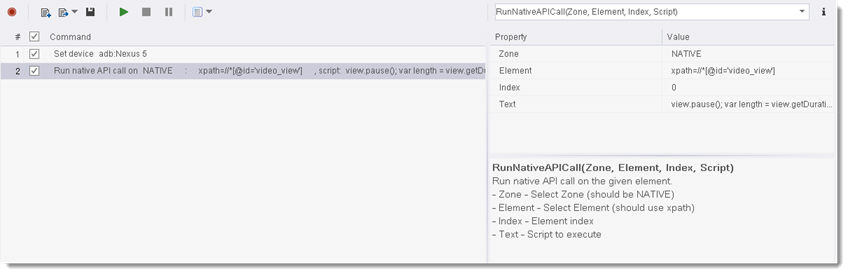
To exit the API Call dialog box, click the OK button.
Code Examples
String str3 = client.runNativeAPICall("NATIVE", "xpath=//*[@id='video_view']", 0, "view.pause(); var length = view.getDuration(); length = length*0.9; view.seekTo(length);");string str3 = client.RunNativeAPICall("NATIVE", "xpath=//*[@id='video_view']", 0, "view.pause(); var length = view.getDuration(); length = length*0.9; view.seekTo(length);");str7 = client.RunNativeAPICall ( "NATIVE", "xpath=//*[@id='video_view']", 0, "view.pause(); var length = view.getDuration(); length = length*0.9; view.seekTo(length);" )Reportvar3 = self.client.runNativeAPICall("NATIVE", "xpath=//*[@id='video_view']", 0, "view.pause(); var length = view.getDuration(); length = length*0.9; view.seekTo(length);")my $str3 = $client->runNativeAPICall("NATIVE", "xpath=//*[\@id='video_view']", 0, "view.pause(); var length = view.getDuration(); length = length*0.9; view.seekTo(length);");