Silk Mobile
Table of Contents (Homepage)
- Overview
- Setting Up
- Getting Started
- How To
- Connecting Devices And Emulators
- Preparing Applications For Testing
- Managing Applications
- Recording Tests
- Working With Test Commands
- Adding Commands To Your Scripts
- Object Commands
- Click
- ClickCoordinate
- ClickIn
- ClickOffset
- Drag
- ElementGetProperty
- ElementGetTableRowsCount
- ElementListPick
- ElementListSelect
- ElementListVisible
- ElementScrollToTableRow
- ElementSendText
- ElementSetProperty
- ElementSwipe
- ElementSwipeWhileNotFound
- GetAllValues
- GetElementCount
- GetElementCountIn
- GetTextIn
- IsElementBlank
- IsElementFound
- IsFoundIn
- LongClick
- RunNativeAPICall
- SendWhileNotFound
- VerifyElementFound
- VerifyElementNotFound
- VerifyIn
- WaitForElement
- WaitForElementToVanish
- GetCoordinateColor
- DragDrop
- Application Commands
- Device Commands
- Web (Hybrid) Specific Commands
- Utilities Commands
- Monitoring Commands
- Configuration Commands
- ExtractLanguageFiles
- SetDefaultClickDownTime
- SetDefaultTimeOut
- SetDefaultWebView
- SetDragStartDelay
- SetInKeyDelay
- SetKeyToKeyDelay
- SetLanguage
- SetLanguagePropertiesFile
- SetShowImageInReport
- SetShowPassImageInReport
- SetShowReport
- SetSpeed
- SetThrowExceptionOnFail
- SetWebAutoScroll
- StartStepsGroup
- StopStepsGroup
- TextFilter
- Miscellaneous Commands
- Controlling Element Identification Rules
- Editing Test Objects
- Executing Test Scripts
- Report Of Executed Test
- Working From Code Environment
- Continuous Integration
- Layout Verification Tests
- Use Device Vitals Monitors
- Troubleshooting
- Terminology
Color Filter
This feature allows you to improve the Text Recognition option while setting the Element's Text properties.
When to use?
-
Case I: When the Text's color is very similar to the background color.
For example:
-
Case II: When you want to read only part of the text, which has a different color.
For example:
Case I:
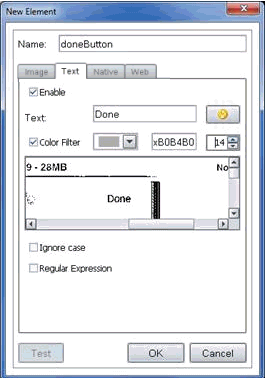
After you have extracted an Element, go to its properties, and select the 'Text' tab. Then click on "Enable".
When you click on the orange 'Refresh' button, the text written in the Element should appear in the Text box near it. In some cases, like in this example, the color of the text is very similar to the background's color, and for that reason, Silk Mobile can't read it. In such a case you can use the "color filter" option.
Step 1: Tick the 'Color Filter' box
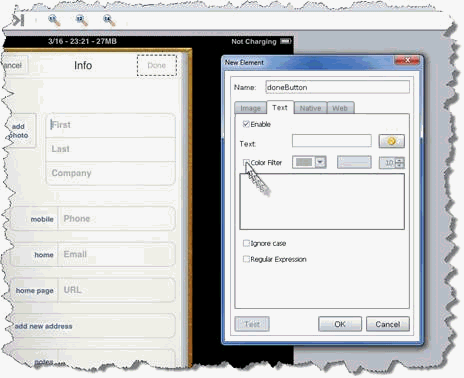
Step 2: You will then see the scene where the Element was taken from, only it's filtered by the color of the text. You will then have to navigate to the Element.
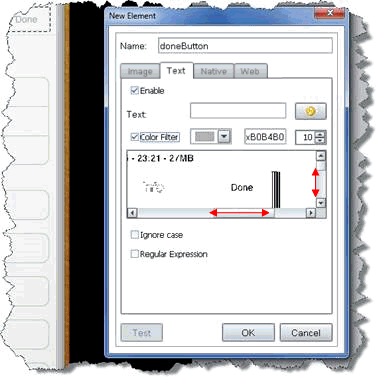
Step 3: Choose the color you think will be more suitable for the text, and the sensitivity (between "0"-"100", when "0" is not sensitive at all), which is the range of colors that will not be filtered along with the color you chose.
Change these parameters until you think that the text is clear enough for Silk Mobile to identify it.
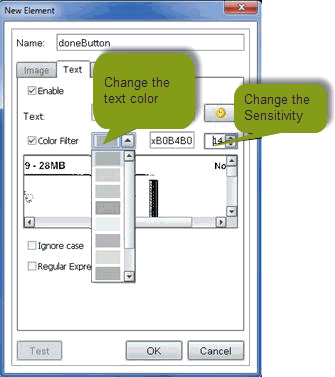
Step 4: When the text is clear enough, click on the orange 'Refresh' button, andSilk Mobile should then identify the text
Case II:
After you have extracted an Element, go to its properties, and select the 'Text' tab. Then click on "Enable".
When you click on the orange 'Refresh' button, the text written in the Element should appear on the Text box near it. In some cases, like in this example, you would like Silk Mobile to read only part of the text, that is written in a different color. In such a case, you can use the "Color Filter" option.
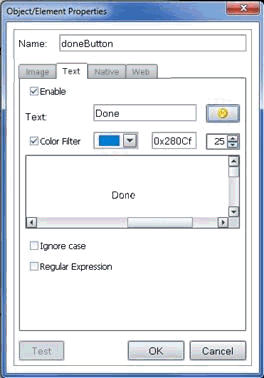
In this case, if you use the Text Recognition, Silk Mobile would return "Cancel Info Done" as seen below
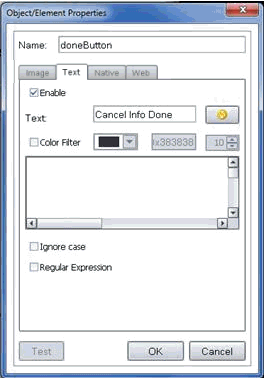
If you want it to only read the blue text only, do the following
Step 1: Tick the 'Color Filter' box
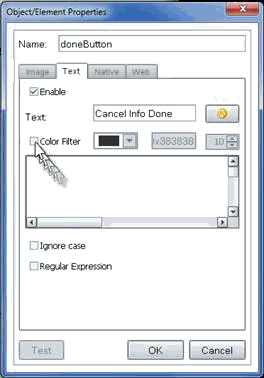
Step 2: Change the color to the text's color, and change the sensitivity if you think it's not clear enough
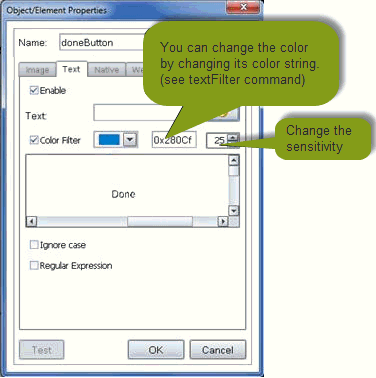
Step 3: Click on the orange 'Refresh' button, and Silk Mobile should then identify the blue text.