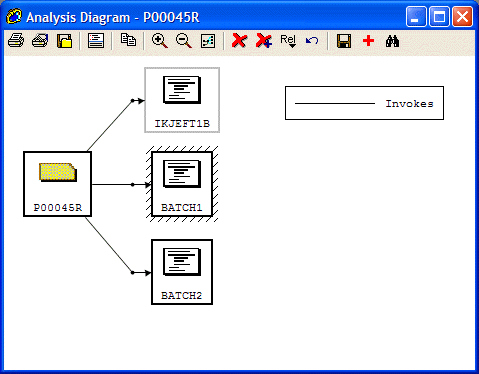
Figure 5-1: Analysis DiagramView
This chapter describes the tools available from the Diagrams menu and how they can help you in your tasks.
Revolve diagrams create various graphical representations of your applications. They are accessed from the Diagrams menu and are named according to their functionality. The following diagrams are available for you to use during your analysis tasks:
The Screen diagram creates an image of the BMS or MFS screen as it would be displayed in a production system. Uninitialized fields are shown with "X"s, or "9"s if numeric.
When the Screen diagram is invoked from the Diagrams menu, an Open Screen dialog appears. To find a specific BMS or MFS file, enter the file name into the Match edit box and click Match, or use the list to find and select multiple files for display in the diagram. The Select All button selects all of the items in the scroll-able list and opens Screen views for each file.
Floating text displays the names of the fields the mouse passes over. You can disable the popup text on the Utilities > Options > User tab.
The Analysis Diagram creates a diagram of objects in your application, based on one or more starting points. It is a graphical representation of the relationships between high-level objects (such as programs, JCL jobs and files) in your project.
With the Split Screen Editor open, you can select the different objects and view their source in the lower window.
If you invoke the Analysis Diagram from the Diagrams menu, a Select Objects for Analysis Diagram dialog appears, so you can select one or more objects as a starting point. To find a specific object, first select the Object Type from the list box, and then either enter the object name into the Match edit box and click Match, or use the list to find and select multiple objects for display in the diagram.
If you invoke the Analysis Diagram from the context-menu, the starting object is the object currently selected in the window. If no supported object type is selected, the context-menu is disabled.
When your object(s) appear(s) in the Analysis Diagram, select just one of them and use the Rel button to select the relationships you want to follow, to add new objects to the diagram. Only relationships applicable to that object are enabled in the Relationships dropdown menu.
Figure 5-1: Analysis DiagramView
You can select one or more objects in the diagram (left-click or Ctrl + left-click) and move or delete them from the diagram. Deleting an object also deletes its connecting lines (relationship lines). If you want to also delete any objects that would be orphaned through the removal of relationships, use Delete Extended.
The connecting lines (relationship lines) can also be selected and moved using drag and drop. The Undo icon will reverse your last change.
Note: If new relationships are added to the diagram, all previous moves of items will be lost.
You can add more starting points to an existing Analysis Diagram, by using the Select Objects for the Analysis Diagram toolbar button. Choose objects to be added to the diagram: if an object is already in the Analysis Diagram, it will be selected. No relationships will be shown for these new objects: you need to add them using the Rel button as before.
The Save as icon lets you save your diagram in any of several graphical file formats.
The Save icon lets you save an analysis diagram in a format that can be reloaded into the Analysis Diagram editor. To reload a saved diagram, select Diagrams > Analysis Diagram, and in the Select Objects for Analysis Diagram dialog, choose a saved file Analysis Diagram Format (*.adf) file to load. This internal format lets you save your work and resume it later.
The Paragraph Flow diagram displays a flowchart that illustrates the coding within a paragraph or section in your project.
When the Paragraph Flow diagram is invoked from the Diagrams menu, a Select a Label as a Starting Point To View dialog appears. To view a logical flow diagram of the coding of a specific paragraph or label, select a component and then the label, and click OK.
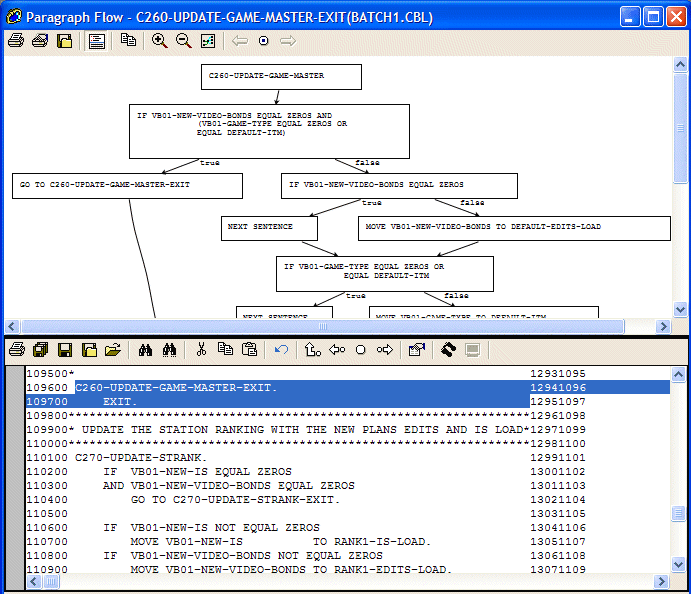
Figure 5-2: Paragraph Flow View
The Job Stream diagram enables you to view JCL Job stream files as graphical illustrations. Job streams contain the execution sequence for JCL Jobs in your system. In the Job Stream diagram, JCL Jobs are displayed as a network that indicates the order in which they are executed. The exclusion and dependency relationships between the JCL Jobs are also shown.
Note: The Job Stream diagram is not designed to handle loops within the stream's schedule. It requires jobs with no predecessors to start the diagram from.
You can load a job schedule into a Revolve project as a component. See the Job Schedules chapter in Part 2 of your User's Guide for more information on this feature. Also see the online help for operational instructions.
For information on the Job Stream Editor, see the chapter Job Stream Editor.
The Program Flow diagram displays a flowchart that illustrates the calling hierarchy of the paragraphs and sections in a COBOL program or entry point. The flow chart shows GO TO statements, PERFORM statements, CICS error handlers and fall throughs in relation to the paragraphs and sections in the program.
When the Program Flow diagram is invoked from the Diagrams menu, a Select Component to View dialog appears. To find a specific component, enter its name into the Match edit box and click Match.

Figure 5-3: Program Flow View for COBOL File
Revolve uses the default options on the
Utilities > Tools/ Diagrams Options page, when opening a
Program Flow diagram. Once a Program Flow diagram has been opened, the options
can be changed from the Program Flow Options dialog, invoked by clicking
Options
 . If there are
multiple programs within the selected component, Next Object
. If there are
multiple programs within the selected component, Next Object
 and
Previous Object
and
Previous Object
 buttons are
displayed on the toolbar. These buttons let you step through the programs
either forward or backward.
buttons are
displayed on the toolbar. These buttons let you step through the programs
either forward or backward.
The Display Error/Exception Branches check box enables you to show or hide branches or exceptions that occur in a program (that is, CICS handlers or ON ERROR clauses).
The Program Flow Options dialog enables you to specify whether to display any error/exception branches that occur.
Revolve expects there to be at least one section per COBOL program and one paragraph per section. If these are not explicitly labeled, then they are implied in the database.
The Inventory diagram creates a complete graphical diagram of a program or JOB, including all of their related entities.
Note: We recommend that you click Project > Complete to provide Revolve with any missing information before the Inventory diagram is opened.
When the Inventory diagram is invoked from the Diagrams menu, a Select Component to View dialog appears. To find a specific program, enter the program name into the Match edit box and click Match.
The Inventory for COBOL programs shows the main program, copybooks/includes, files, databases, screens, programs called, and entities invoking the main program.
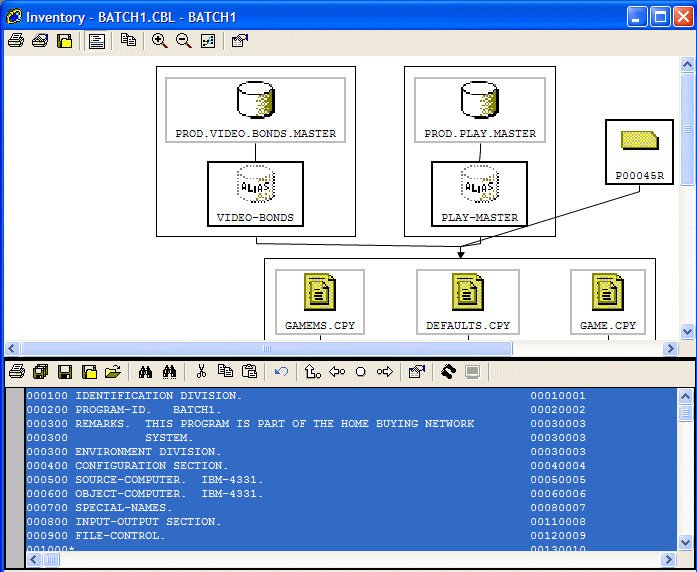
Figure 5-4: Inventory View for COBOL File
The JCL/ECL inventory represents the job/run, steps, devices/files, executables, and DD statements.

Figure 5-5: Inventory View for JCL
If the DISP parameter of a DD statement is read-only, Revolve will place an arrow from the step to the DD icon. The following translations are used:
These are the defaults assumed when the program being executed is not loaded. If the program source is loaded, it is used to accurately represent the Input and/or Output usage status of each file.
Floating text enables you to see the full name of the elements the mouse passes over. You can disable the popup text on the Utilities > Options > User tab.
Copyright © 2006 Micro Focus (IP) Ltd. All rights reserved.