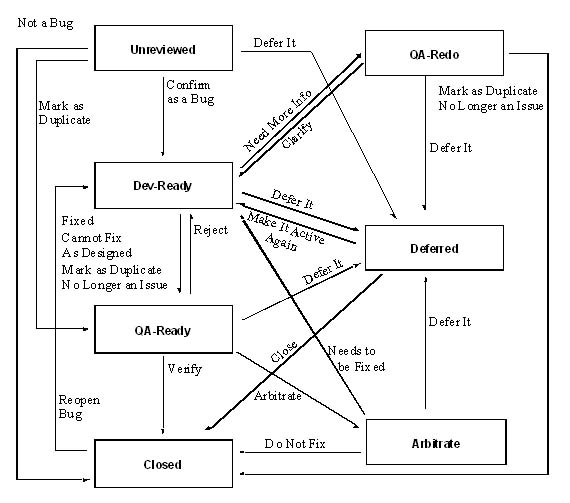
Issue Manager provides three default workflows—for bugs, documentation
issues, and enhancements.
•If
after reading about the default workflows you decide that they suit your
organization’s needs, you do not need to continue reading this chapter.
•If,
on the other hand, you want to modify the default workflows or create
your own workflows, see “Developing Your Own Workflows”.
Key to the diagrams
The three workflow diagrams use the following symbols and labels.:
Symbol
Meaning
This rectangle denotes a workflow state called state-name.
The arrow denotes an action. The action moves the issue
from its current state to the state pointed to by the arrow.
Each arrow is labeled with the name of the action,
for example, Confirm as a Bug.
Default
Bug Workflow
Notes about the diagram
The Edit, Reassign, Add Comment,
and Add Workaround actions have
been omitted from this diagram.
•Edit and Reassign
are predefined for each state and cannot be modified. These actions do
not change an issue’s state.
•Add Comment, which is defined for all
states, does not change an issue’s state.
•Add Workaround, which is defined for
Dev-Ready, QA-Ready, QA-Redo, and
Closed, does not change an issue’s
state.
Default
reason codes in the bug workflow
To see all the reason codes supplied in the default bug workflow, go
to Configuration/Workflows. Select
BUG as the issue type and view
its valid actions and reason codes.
Examples
Consider a common path through the default bug workflow. A bug is reported,
enters the Unreviewed state,
and is sent to a QA engineer’s inbox. The bug is confirmed and sent to
a developer’s inbox (Dev-Ready
state). The developer claims to fix the bug and takes the Fixed
action. The Fixed action sends
the bug to QA-Ready with the
reason code Fixed. The QA engineer
who receives the issue verifies that the bug has been fixed. In other
words, he takes the Verify action,
which sends the bug to the Closed
state, retaining the Fixed reason
code.
Now consider a small change in the preceding example. Say that the QA
engineer rejects the developer’s claim that the bug has been fixed. The
bug returns to the developer’s inbox, but this time the reason code is
Rejected. The developer is unable
to reproduce the problem and so takes the Need
More Info action. The bug goes to QA-Redo.
The QA engineer can take one of two actions to close the issue
at this point—Mark as Duplicate or
No Longer an Issue, or the QA
engineer can clarify the problem and send the bug back to Dev-Ready.
Default Documentation Workflow
Notes on the diagram
The Edit, Reassign, and Add Comment actions have been omitted
from this diagram.
•Edit and Reassign
are predefined for each state and cannot be modified. These actions do
not change an issue’s state.
•Add Comment, which is defined for all
states in this workflow except QA-Ready,
does not change an issue’s state.
Default
reason codes in the documentation workflow
To see all the reason codes supplied in the default documentation workflow,
go to Configuration/Workflows. Select
DOC-ISSUE as the issue type and
view its valid actions and reason codes.
Example
Assume that a documentation issue enters in the Unreviewed
state. At that point there are three possible actions that the reviewer
can take. He can accept the issue, reject the issue, or mark it as a duplicate
of another issue. If the issue is rejected or found to be a duplicate,
then it will be closed, with a reason code of Rejected
or Duplicate. If the reviewer
considers the issue a documentation issue that needs to be fixed, then
the issue will be moved to the Open-Doc
state and to a documentation inbox. The documentation specialist
can take one of two actions at this point: either take the Fixed
action or the Mark as Duplicate
action.
•The
Fixed action sends the issue
to the QA-Ready state with a
reason code of Fixed.
•The
Mark as Duplicate action sends
the issue to a Closed state with
a reason code of Duplicate.
If the fix is later verified, then the issue will be moved to the Closed state with a reason code of
Resolved. If, on the other hand,
the fix is rejected, then the issue will be returned to a documentation
inbox with a reason code of Rejected.
Default Enhancement Workflow
Notes on the diagram
The Edit, Reassign, Add Comment,
and Add Workaround actions have
been omitted from this diagram.
•Edit and Reassign
are predefined for each state and cannot be modified. These actions
do not change an issue’s state.
•Add Comment, which is defined for all
states in this workflow, does not change an issue’s state.
•Add Workaround, defined for all states
except Unreviewed, does not affect
the state.
Default
reason codes for the enhancement workflow
To see all the reason codes supplied in the default enhancement workflow,
go to Configuration/Workflows.
Select ENHANCEMENT as the issue
type and view its valid actions and reason codes.
Example
Consider that a request for an enhancement is accepted and sent to Development
(Dev-Ready) by either an initial
set of reviewers (Unreviewed state)
or by a management team (Mgmt-Call
state). The management team receives the enhancement request if the initial
reviewers take the Maybe action.
If the initial reviewers or management team reject the enhancement request,
the issue is closed with a reason state of Rejected.
This Reject action is different
from a Reject action taken on
an issue in the QA-Ready state.
In that case, the development action (Implemented,
Cannot Do, Already Done, or Mark
as Duplicate) is being disputed.