Silk Mobile support the option to launch and close of the application under test. You can use that for easy restart of you application between tests.
To enable this option we use a ‘LaunchAgent’. The ‘LaunchAgent’ is an iOS application that enables the launch and close of the target application.
So the ‘LaunchAgent’ is been launch once, then when using the Launch command the application under test will be launch, When using the ApplicaitonClose
command the tested application will be closed and the ‘LaunchAgnet’ will start again.
In order to set it up you need to setup up 3 things:
1. In the instrumentation process of your application you need to add URL scheme (if not already exist).
2. In your test you need to add the Launch command before every test and ApplicationClose in the end of every test.
3. Optionally you can setup the LaunchAgent so you can test the launch process.
You will need to register the Custom URL Scheme:
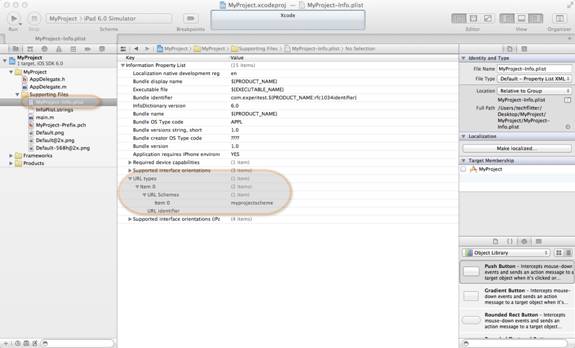
In the Project Navigator, expand the Supporting Files group and open the Project-Info.plist file.
You can add a new row by going to the menu and clicking Editor > Add Item. Set up a URL Types item by adding a new item. Expand the URL Types key, expand Item 0, and add a new item, “URL schemes”. Fill in “readtext” for Item 0 of “URL schemes” and your company identifier for the “URL Identifier”.
You can download and install the LaunchAgent by
opening the following link directly from the iOS device:
http://d242m5chux1g9j.cloudfront.net/iphone/index.html
When launched on your device the ‘LaunchAgent’ screen should look as follow:
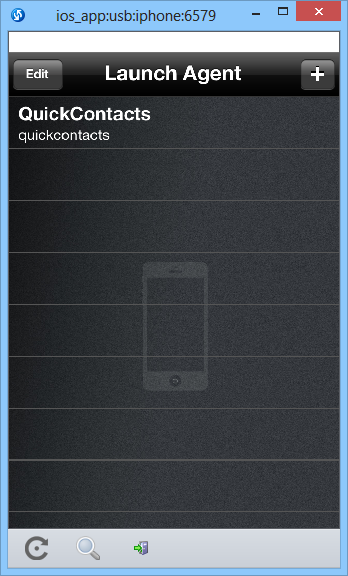
You can then add new application by clicking on the “+” sign.
You will need to provide 2 fields:
Name – logical name.
URL Scheme – the value that was added in the ‘Instrumentation setup’ section.
You can now test the launch process by clicking on the added application.
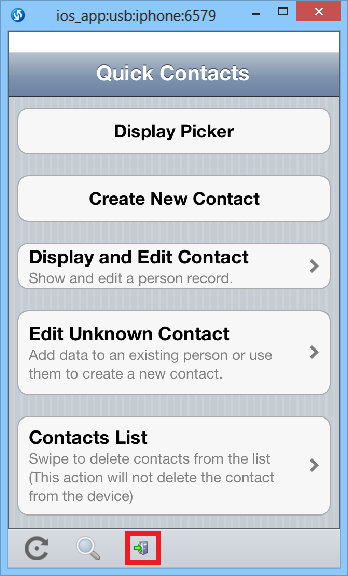
You can then close the application and return to the ‘LaunchAgent’ by clicking on the exit button on the bottom of the device:
In order to use the feature first you got to have the application URL scheme, this information should be provided by the developer and is part of the ‘Instrumentation setup’. This string is then can be used to identify the application and launch it.
So for the ‘QuickContact’ demo application the URL scheme is ‘quickcontacts, the test change looks as follow:
Client.Launch(“quickcontacts”, true, false);
Copyright © 2012 Micro Focus. All rights reserved. Portions Copyright © 2012 Borland Software Corporation (a Micro Focus company).