With
SilkMobile, you can test applications running on real devices, such as iPhone, iPad and iPod. To do so follow the instructions below:
Note:
SilkMobile
provides two options for testing iOS devices:
- Full control – enables you to control any application
or aspect of the device under test including 'settings' and applications
that were not developed by you. This integration requires an iOS device
that is jail-broken.
- Application control – enables to control your
application only. This integration doesn't require jail-broken
device. For this option please refer to the iOS (Non-Jailbroken) section
of the SilkMobile manual.
The first option (Full Control) is covered in this section.
Before starting to connectivity process, here's a diagram that describes the overall architecture of connecting your Jailbroken device to SilkMobile:

Step 1: Jailbreak your
iPhone and install iTunes on your computer (if you do not have iTunes you can
use the following link to download it http://www.apple.com/uk/itunes/download/
)
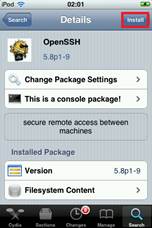
Step 2: Install OpenSSH on your iPhone device.
·
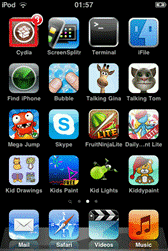
Open Cydia
·
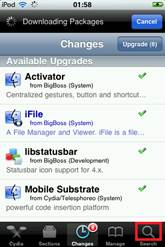
Click on Search
·
Search for 'OpenSSH'

·
Select 'OpenSSH'

·
Click on 'Install'
Step 3: Install Mobile
Substrate package:
·
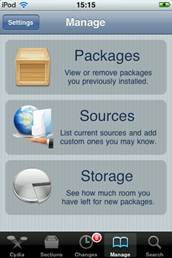
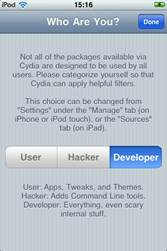
First, Set your user at Cydia to 'Developer':
Go to 'Manage' and click on 'Settings':
Select 'Developer' than click 'Done':
·
Second, Go to the search and
search for 'Mobile Substrate' and install the package.

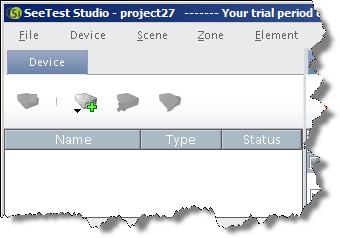
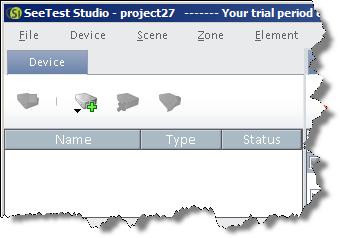
Step 4: Go to the
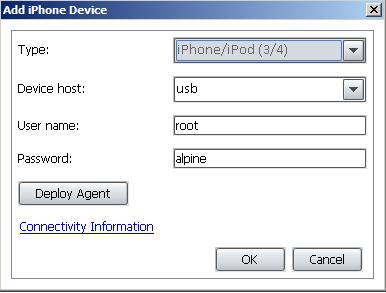
Device Tab and click the Add Device icon; then select iPhone from the drop down
list.

Step 5: A pop-up will
appear. Click the Deploy Agent button (we use for the user and password the
default values: user=root, password=alpine. If you changed those values, please
type in the values you chose).


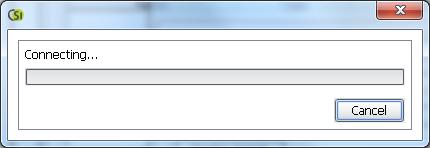
Step 6: A progress bar
will appear.
Step 7: After the
process has been completed, the device will reboot.
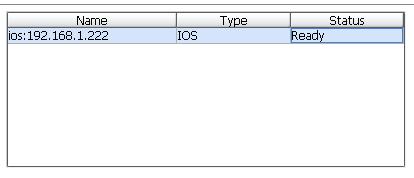
Step 8: The device name
will appear in the Device Tab. Select it and click the “Open Device” button.
You should then see the iPhone device screen appear in your computer.